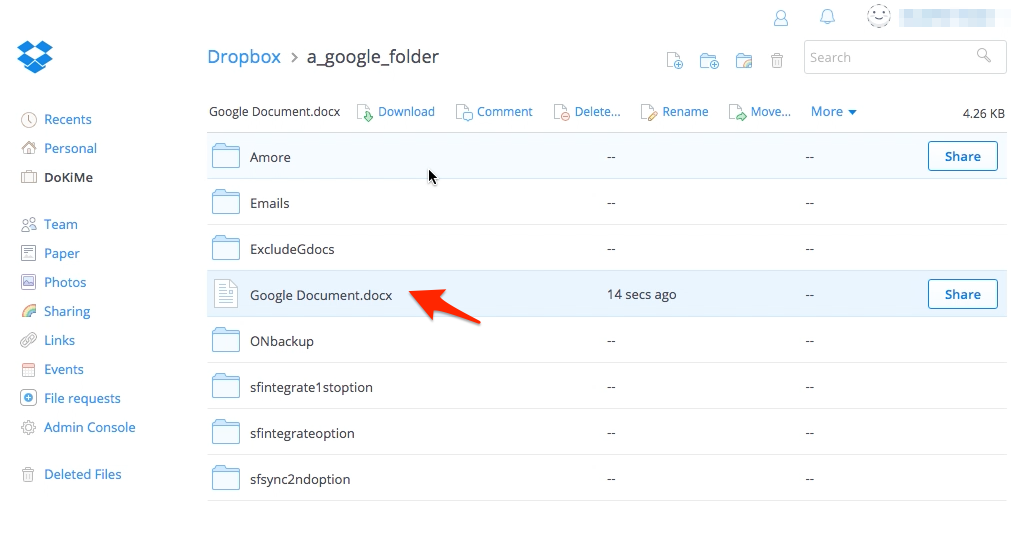
Here is how to save Google Docs to Dropbox with our Chrome extension:
- Install the cloudHQ Chrome browser extension Sync Google Drive with… from this location: https://chrome.google.com/webstore/detail/sync-google-drive-with-dr/iobcbdgacfkninlcbphihhdlkobkehia:
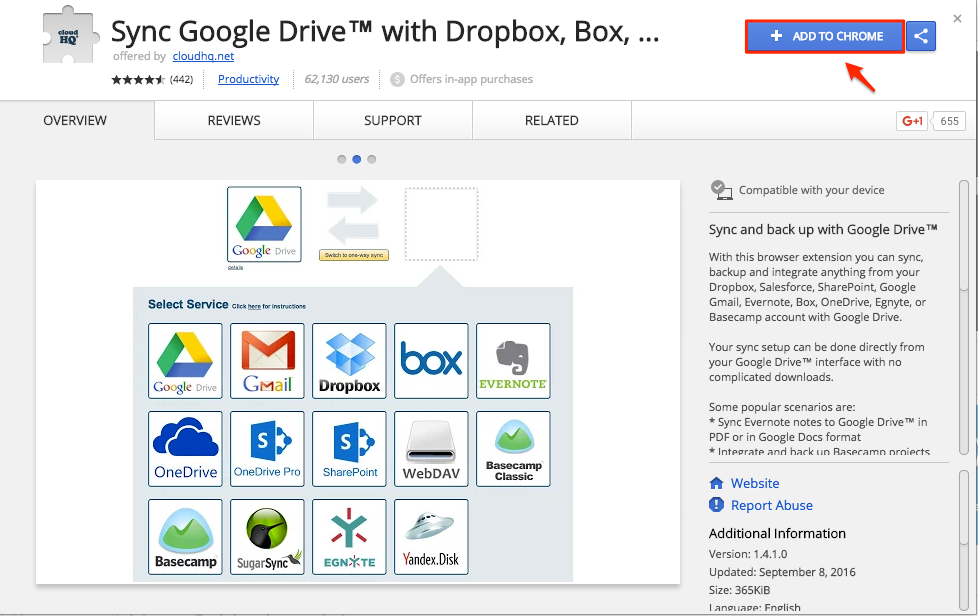
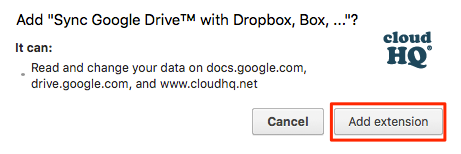
- Add the extension to Chrome so you will have the “Save to” button on your Google Apps Documents:
- A welcome document will appear:
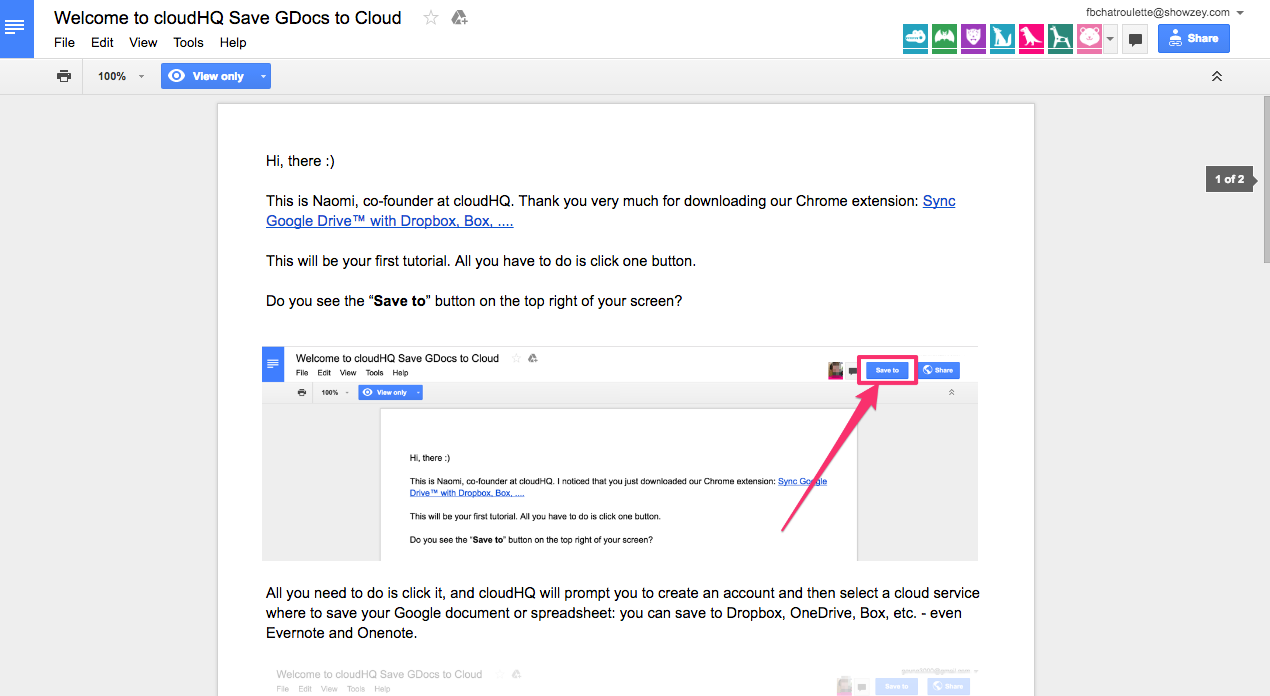
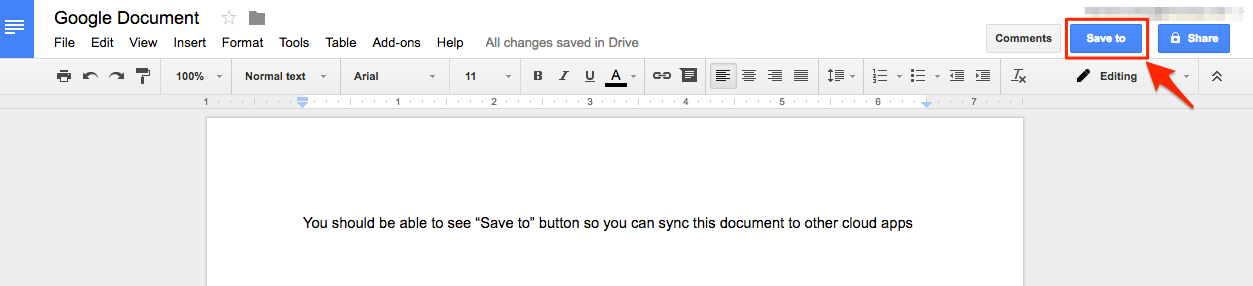
- Open your Google Drive document and you will see the “Save to” button on your Google Apps:
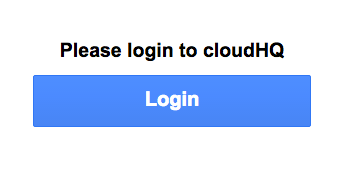
- If you click the “Save to” button on your Google Apps, you will be asked to log into cloudHQ:
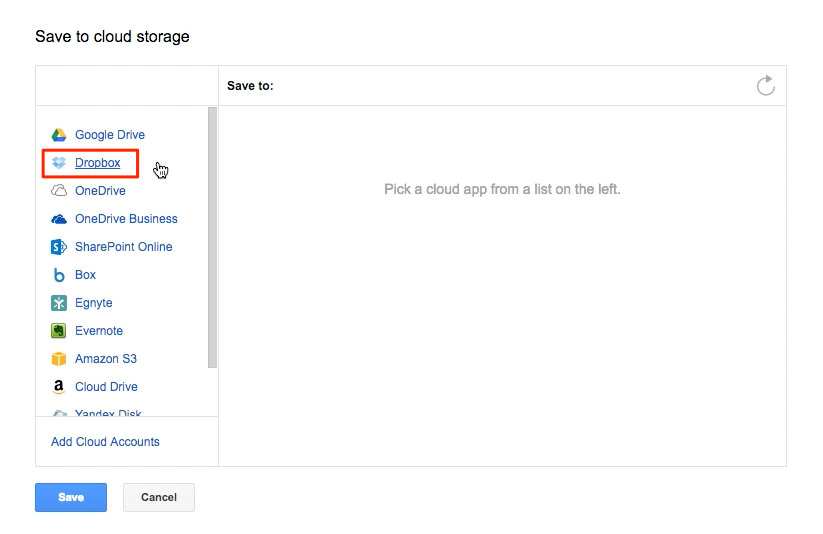
- Select the cloud app where you want to save your Google Apps document:
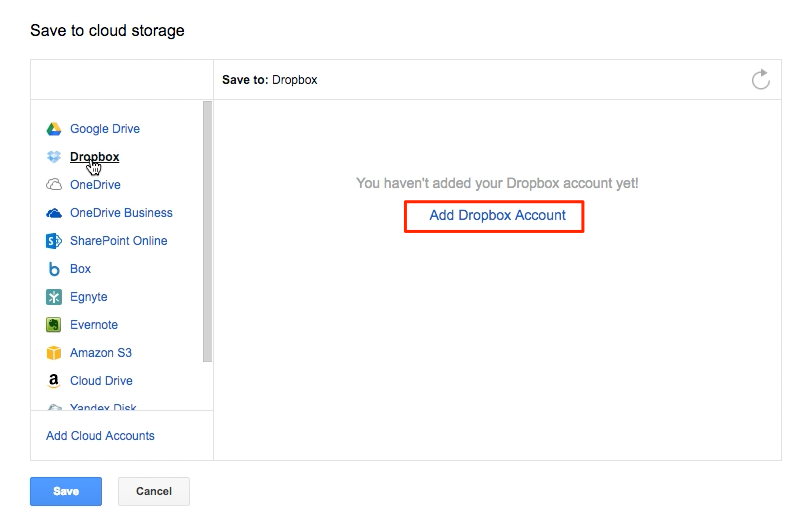
- If you get this notification, it means you will need to authorize Dropbox:
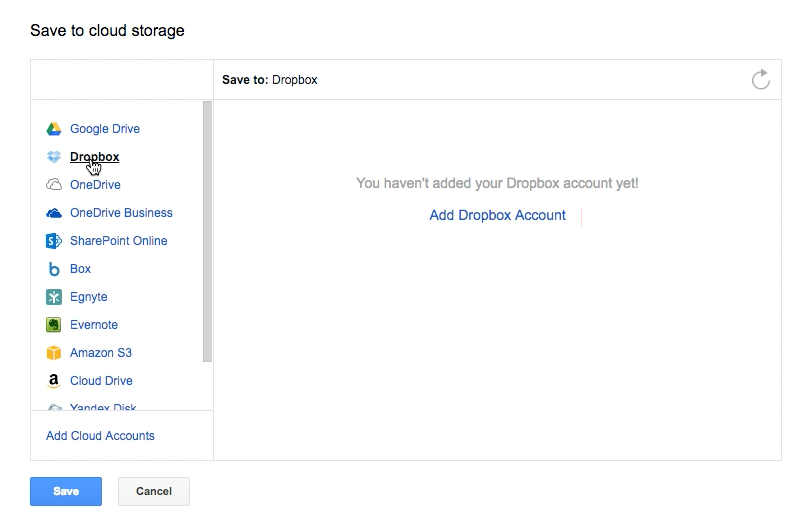
- Click “Add Dropbox Account”:
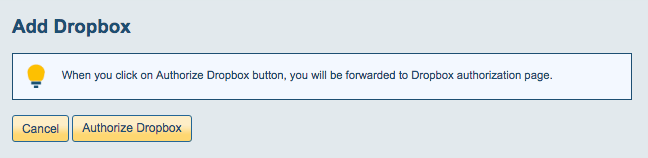
- This will display for a few seconds, then automatically redirect to Dropbox:
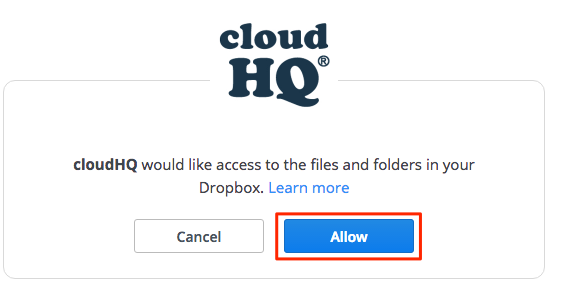
- Authorize cloudHQ in Dropbox:
- Then go back to your Google Docs and click the “Save to” button.
- Select the cloud app again where you want to save your Google Apps document:
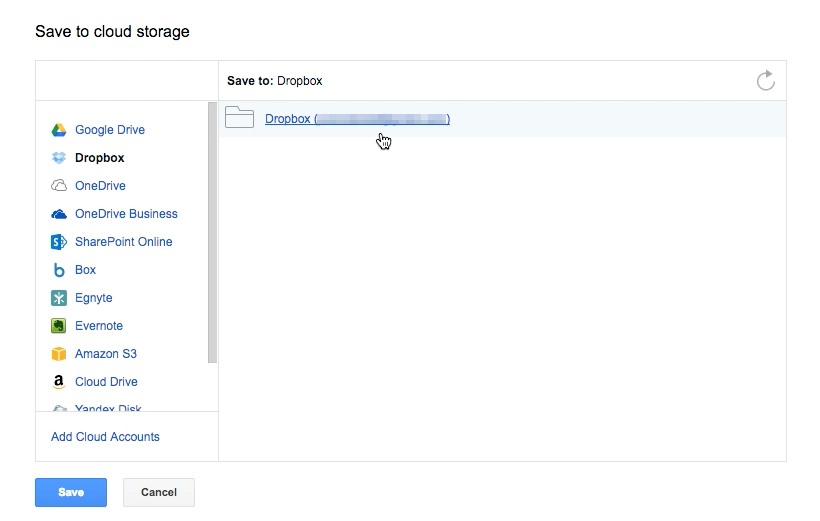
- Select the cloud app folder where you want to save your Google Apps document:
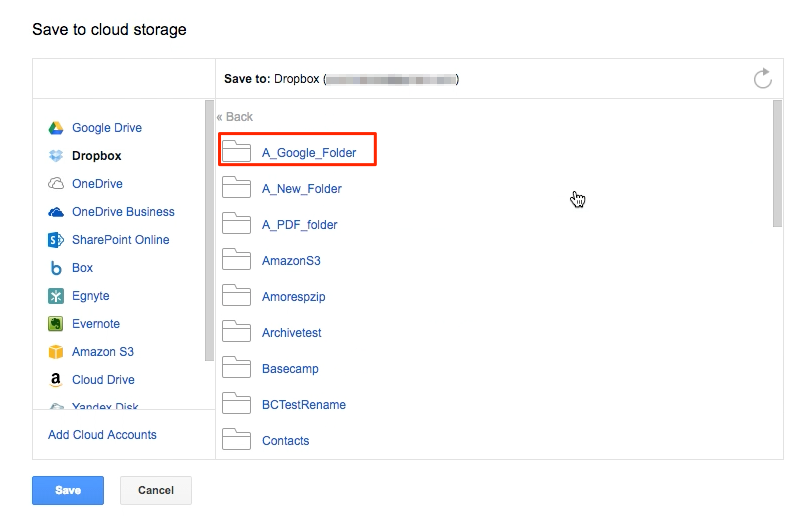
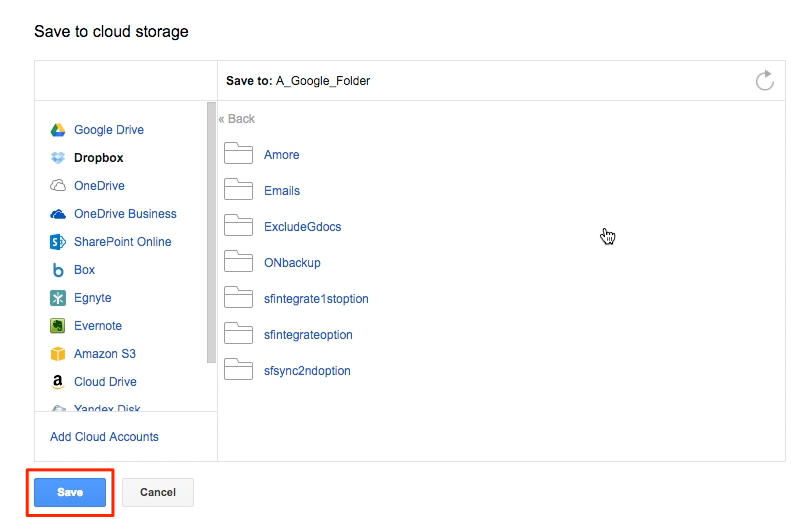
- Click “Save” once you have chosen a location in Dropbox:
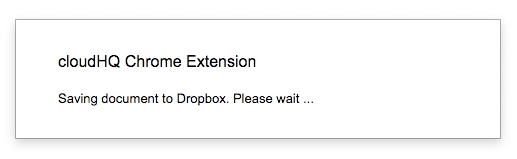
- You will get message that your Google Apps document is being saved to Dropbox:
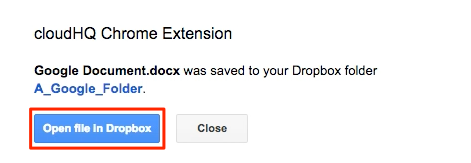
- Your document is now saved in Dropbox. Click “close” if you want to close the notification:
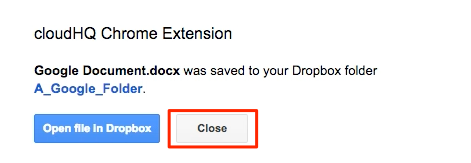
- If you click “Open file in Dropbox” you will be redirected to Dropbox and you’ll be able to view your saved document:
- Your Google Apps document is now saved in Dropbox: